Draw.io
Introduction
Draw.io (https://app.diagrams.net/) is one of the most widely used diagramming tools favoured by developers and architects.
Here we describe the approach to using it, and how to include its output in scenarios such as online documentation.
How to draw
To use
- create a new file ending in .drawio.svg e.g. mydiagram.drawio.svg
- open in VS Code, (with the installed draw.io extension https://marketplace.visualstudio.com/items?itemName=hediet.vscode-drawio), and the file is opened in the draw.io canvas
- edit and save
How to embed
- embed the image in the document using the markdown syntax
simple version

with the result embedded in the page:

styled version
Then you can include the css trick of appending the anchor '#tutorial' to include styling on the page


this relies on the custom css being already set up on the site (as is the case here)
img[src*="#tutorial"] {
  border: 1px solid #f50082 ;
  box-shadow: 10px 10px 5px #f5008233;
  margin:2em;
  max-width:90%;
}
Further tips
-
Visit https://www.drawio.com/doc/#get-started-with-diagramsnet for tutorial guidance
-
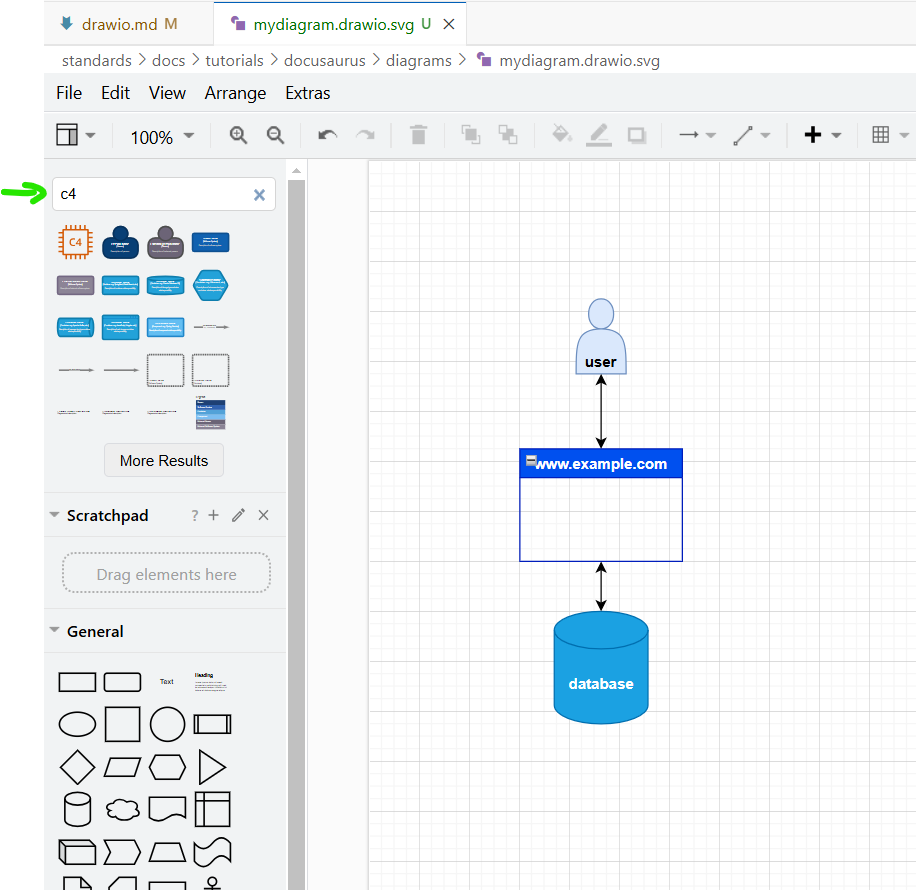
make use of the available shapes, often found using the search e.g. enter "c4" to return the c4 related shapes
-
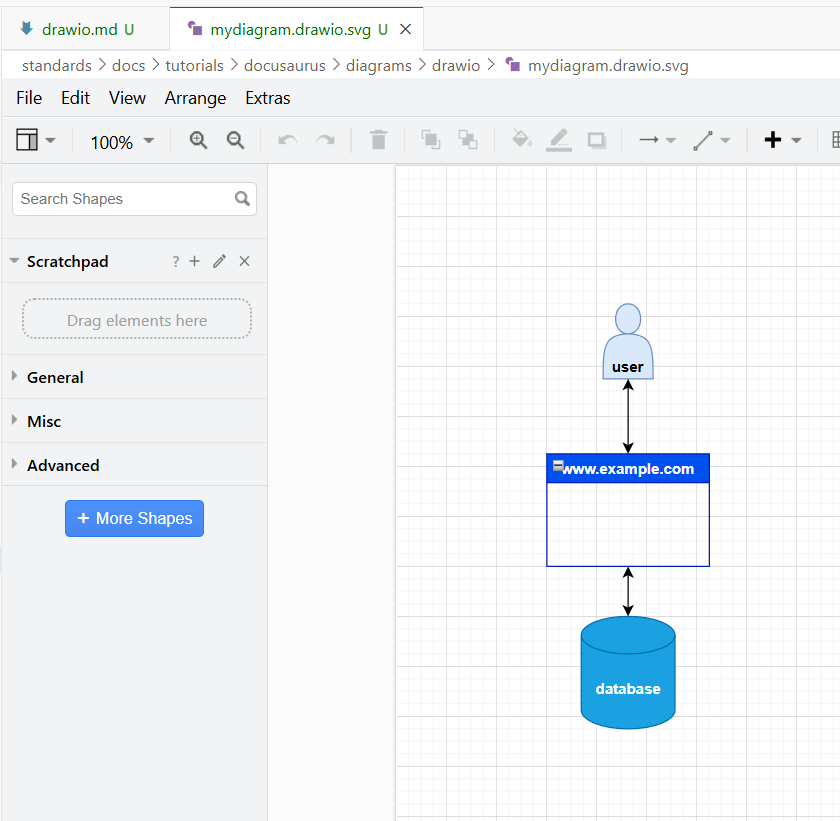
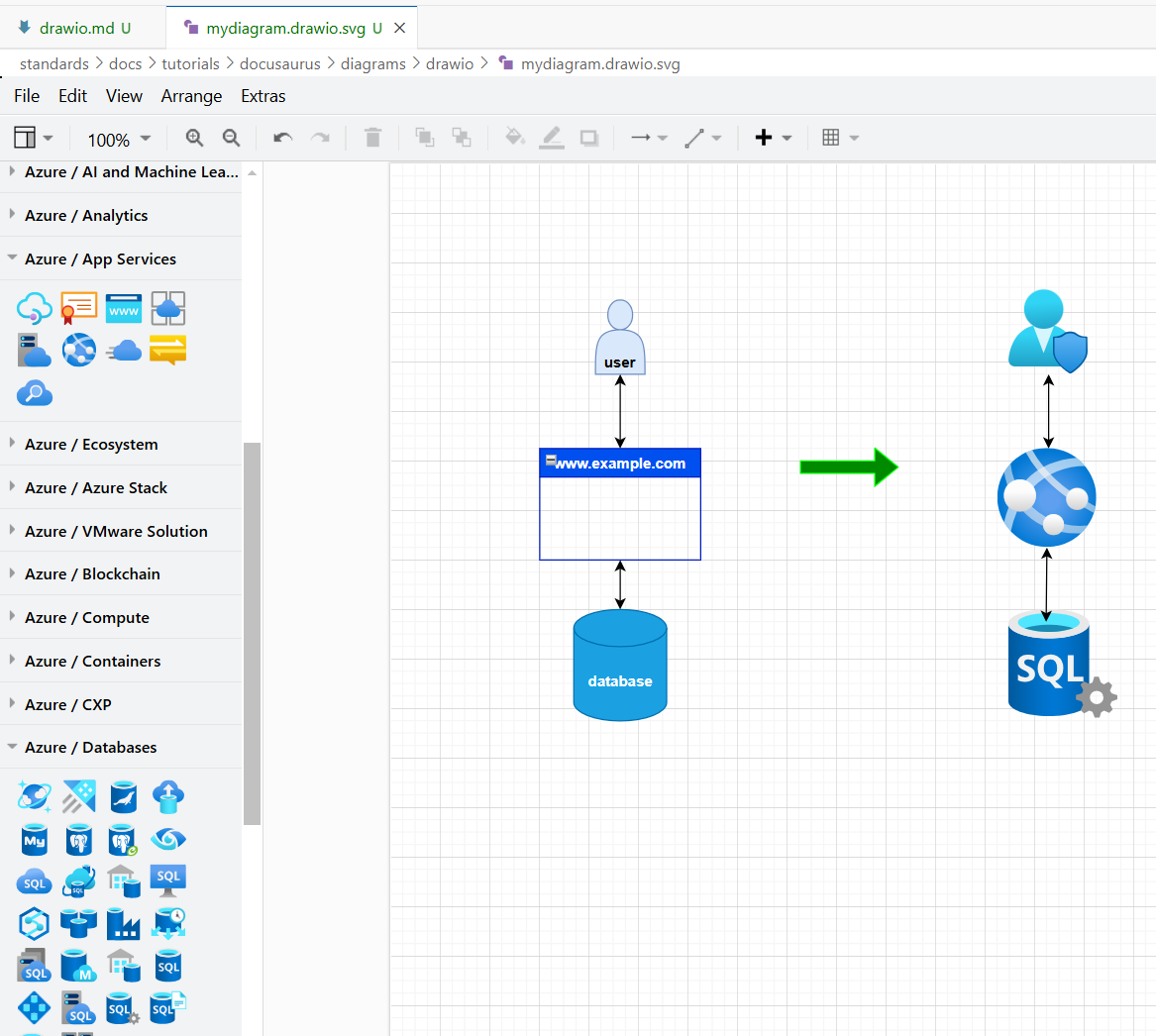
click on "More shapes" and select your preferred set e.g. select "Azure" and click Apply to help create a professional look
- you can do "File" > "Export..." to create a copy of the image in a normal image format like .png
- Remember, the files are actual text-based, svg underneath so
- if you already have a canvas open in another window, you can normally copy/paste the shapes into another, maintaining their native svg behaviour
- you can edit the underlying svg text to save time (e.g. search and replace, avoid messing up the layout etc.)